控制Dell PowerEdge R720的风扇转速 (利用IPMI)
机型和iDRAC版本
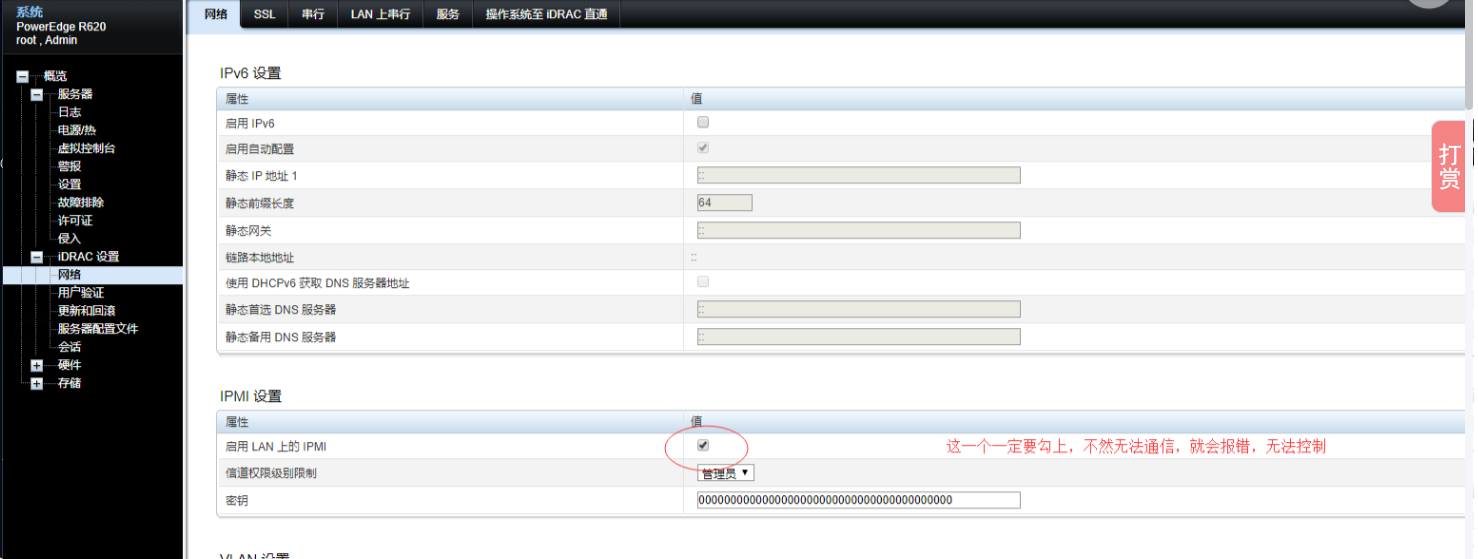
IDRAC里面IPMI必须要打开
使用机型:Dell PowerEdge R720
iDRAC版本:7
控制主机系统版本:CentOS 8 / Windows
# cat ./fan_35.sh
 ipmitool -I lanplus -U root -P calvin -H 192.168.145.231 raw 0x30 0x30 0x01 0x00
 ipmitool -I lanplus -U root -P calvin -H 192.168.145.231 raw 0x30 0x30 0x02 0xff 0x23
 # cat ./fan_auto.sh
 ipmitool -I lanplus -U root -P calvin -H 192.168.145.231 raw 0x30 0x30 0x01 0x01
一、开启IPMI控制
iDRAC 7
1.进入System Setup界面
开机的时候猛戳 F2 ,进入System Setup界面
设置 IPMI 为 enabled
选择Network后往下拉,设置 IPMI 为 enabled
二、风扇调速
CentOS 8 用户
1.安装IPMI
yum install epel-release -y
 yum install ipmitool -y
2.查看状态
rpm -qa | grep ipmi3.进行风扇调速
3.1 启用手动调速
ipmitool -I lanplus -U ipmi用户名 -P ipmi密码 -H 服务器地址 raw 0x30 0x30 0x01 0x00
ipmi用户名:登录iDRAC的用户名,默认为 root
ipmi密码:登录iDRAC的密码,默认为 calvin
服务器地址: iDRAC的服务器IP,不是系统或虚拟机的IP
0x00 代表 禁用 手动调速 ; 0x01 代表 启用 手动调速
3.2 调整风速
ipmitool -I lanplus -U ipmi用户名 -P ipmi密码 -H 服务器地址 raw 0x30 0x30 0x02 0xff 0x180xff 等于所有风扇
0x18 你期望风扇运行的转速百分比,原厂的暴力扇应该为12000rpm,这是 24 的16进制
0xff 0x18 = 所有风扇 以 24% 的转速运行,可以更改 0xff 为单独的风扇调速
至此,应该能够调整转速了,我自己用的是10%的转速,我作为NAS使用。
切勿让转速过低或过高
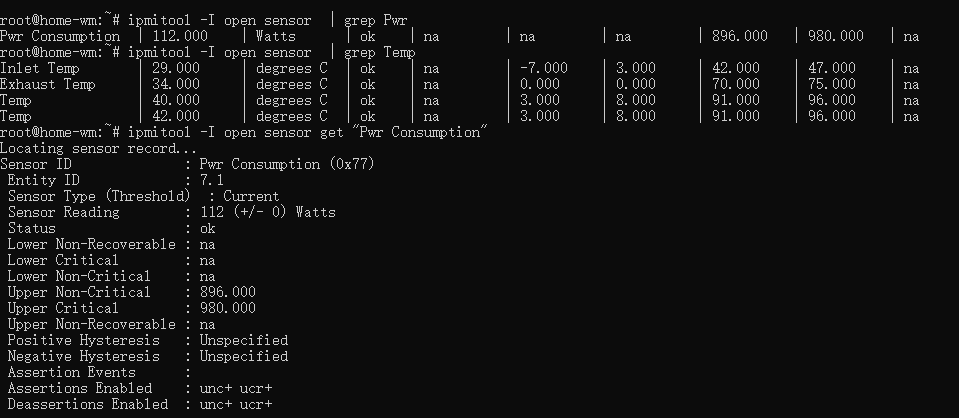
ipmitool -I lanplus -U root -P calvin -H 192.168.145.231 sensor get "Temp"
测试IPMI的连接性:
ipmitool -I lanplus -H 192.168.1.149 -U root -P root raw
将风扇设置为手动调节转速
ipmitool -I lanplus -H 192.168.1.149 -U root -P root-passwd raw 0x30 0x30 0x01 0x00
手动设置风扇转速(最后一字节指示风扇转速的百分比的十六进制,如0x0a就是10% 系统默认最低是18%): 注:常用10% 0x0a、 20% 0x14、30% 0x1e、50% 0x32、70% 0x46、90% 0x5a
ipmitool -I lanplus -H 192.168.1.149 -U root -P root-passwd raw 0x30 0x30 0x02 0xff 0x0a
恢复成自动控制转速
ipmitool -I lanplus -H 192.168.1.149 -U root -P root-passwd raw 0x30 0x30 0x01 0x01
Windows用户
可以利用 @cw1997 大佬开发的软件:
下载地址:dell_fans_controller_v1.0.0
https://github.com/cw1997/dell_fans_controller/releases/ 软件的界面